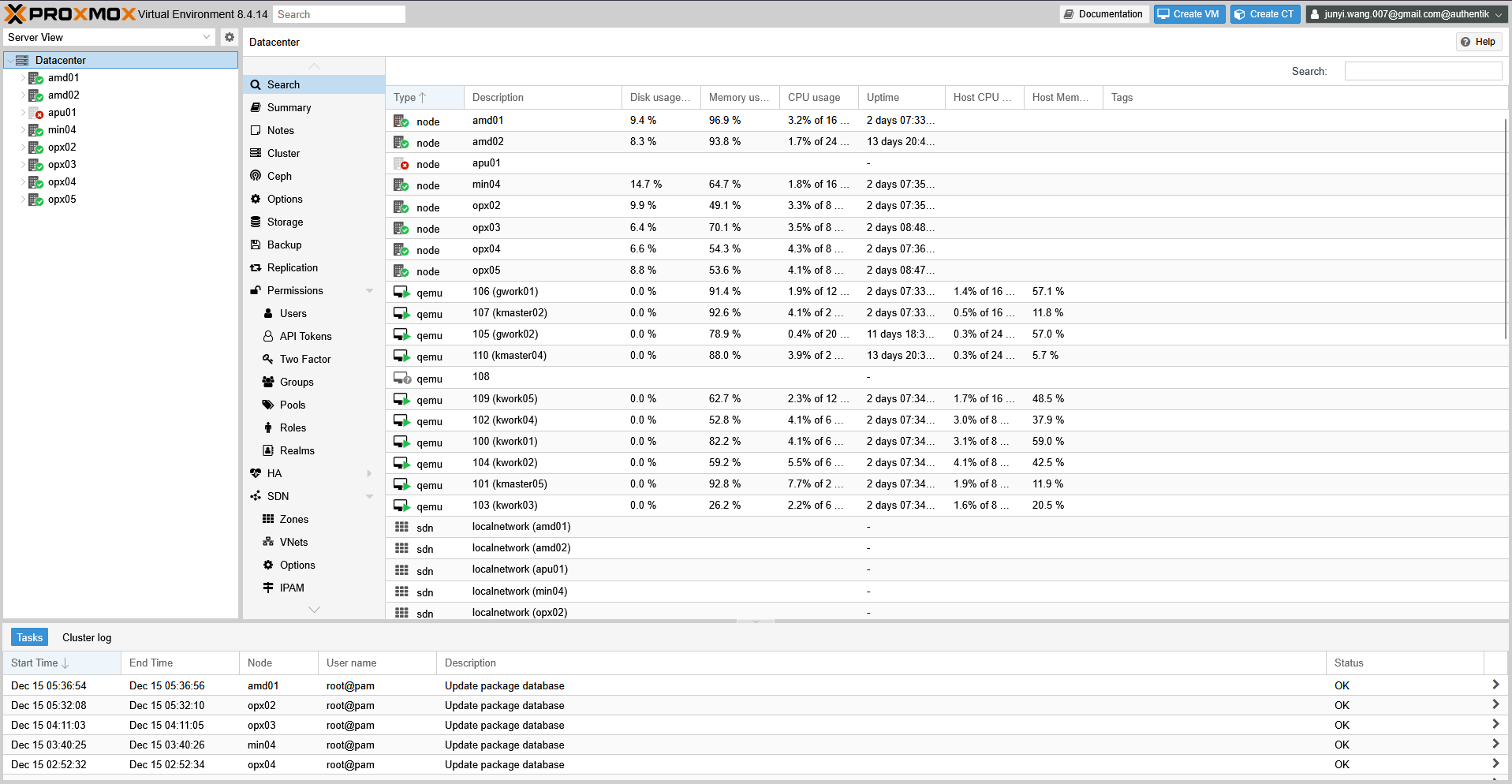
I had no idea Proxmox supported OIDC authentication, until I stumbled upon a reddit post being replied with an RTFM comment linked to User Management page on Proxmox wiki.
Not only that, there turns out to be a Authentik guide on integrating with Proxmox: Integrate with Proxmox VE. I had to give it a try.
In hindsight, this made my life a lot easier. Prior to setting it up, I was typing in my Proxmox root account password every time with PAM authentication. Now I just had to login with Authentik, which in most cases is already done with SSO for other apps.
Environment
- Proxmox VE 8.4.14
- Authentik: 2025.8.1, installed via Helm chart 2025.8.1
Authentik side
As always, the first step is to create an OIDC provider in Authentik.
- Provider type: OAuth2 / OIDC Provider
- Client type: Confidential
- Redirect URIs:
https://pmx.i.junyi.me(strict) - Signing key:
tls - Subject mode: Based on the User’s Email
The tls signing key is the one I set up in this post:
For some reason, the default self-signed certificate in Authentik does not work with Proxmox. I tried it at first and got a 400 with every login attempt.
Proxmox side
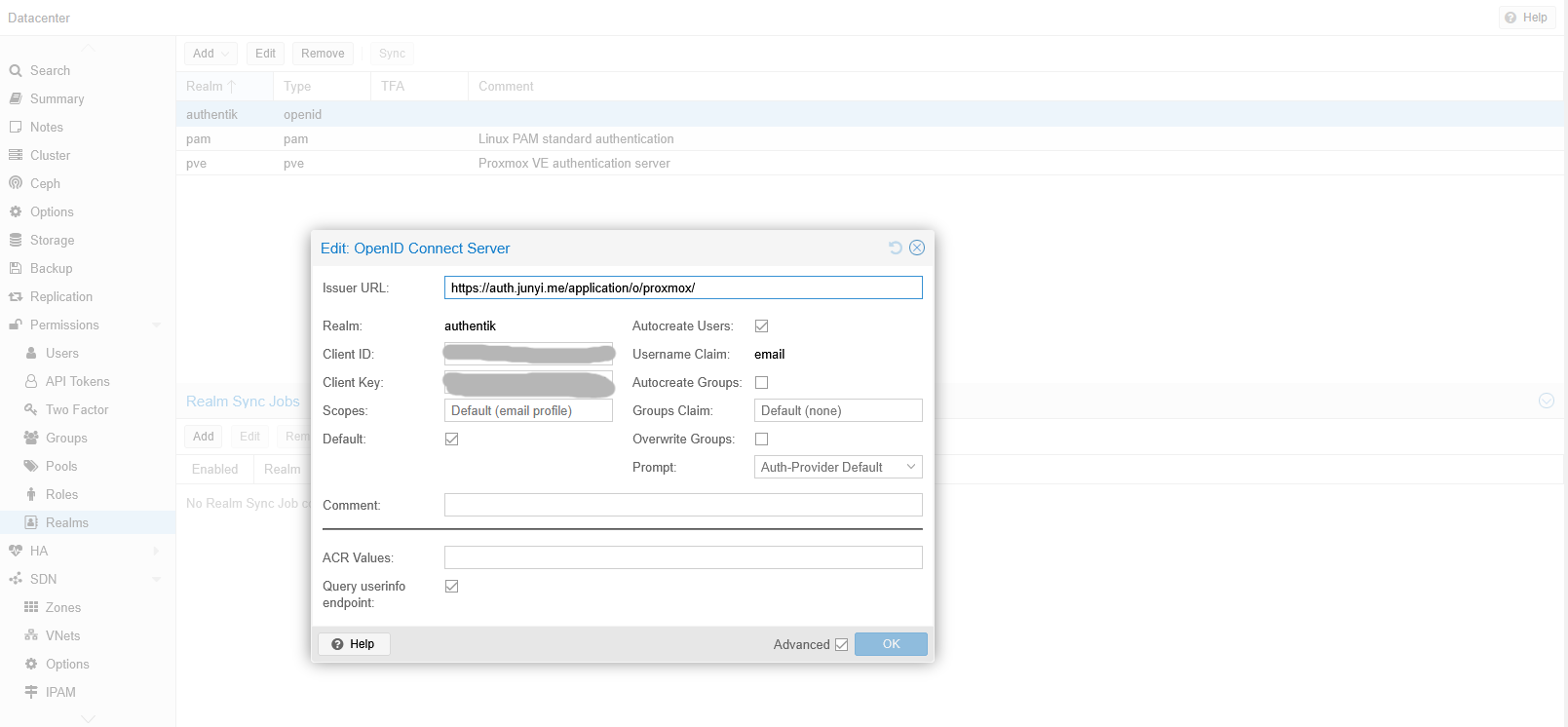
On Proxmox, signed in as the root user, I just had to add a new OIDC authentication realm in Datacenter > Permissions > Realms.
Once added, I opened a private browser window and navigated to my Proxmox URL, confirming the “authentik” option was there.
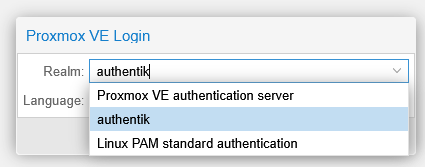
Once “authentik” is selected, the login button took me to Authentik’s login page, redirecting me back to Proxmox console on successful login.
Permissions
The console looked a bit empty at first, since this new user had no permissions assigned. Since I wanted this account to be an admin, I went back to the original tab logged in as root, and configured permissions for the new user.
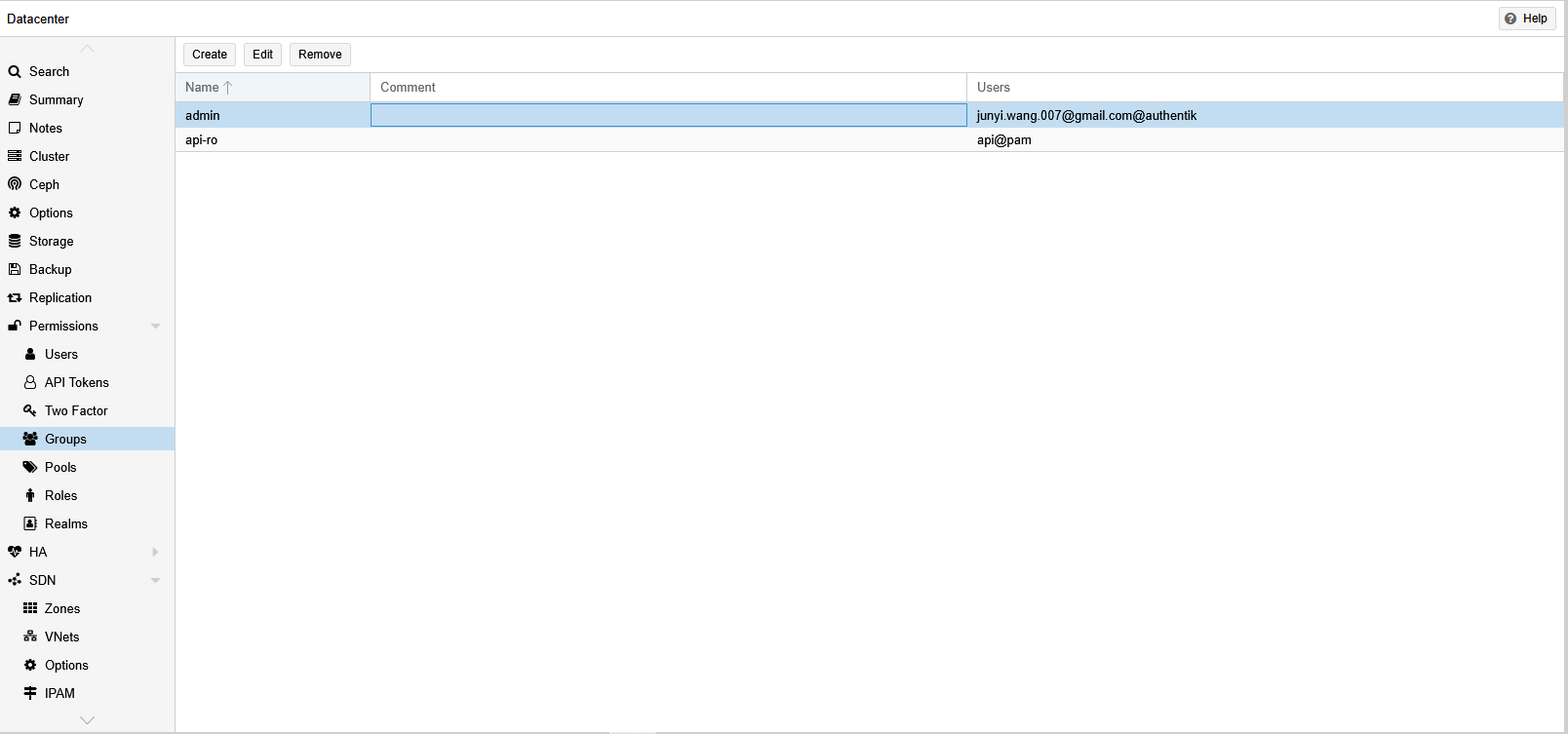
First, a group needed to be created in Datacenter > Permissions > Groups. I created an “admin” group there.
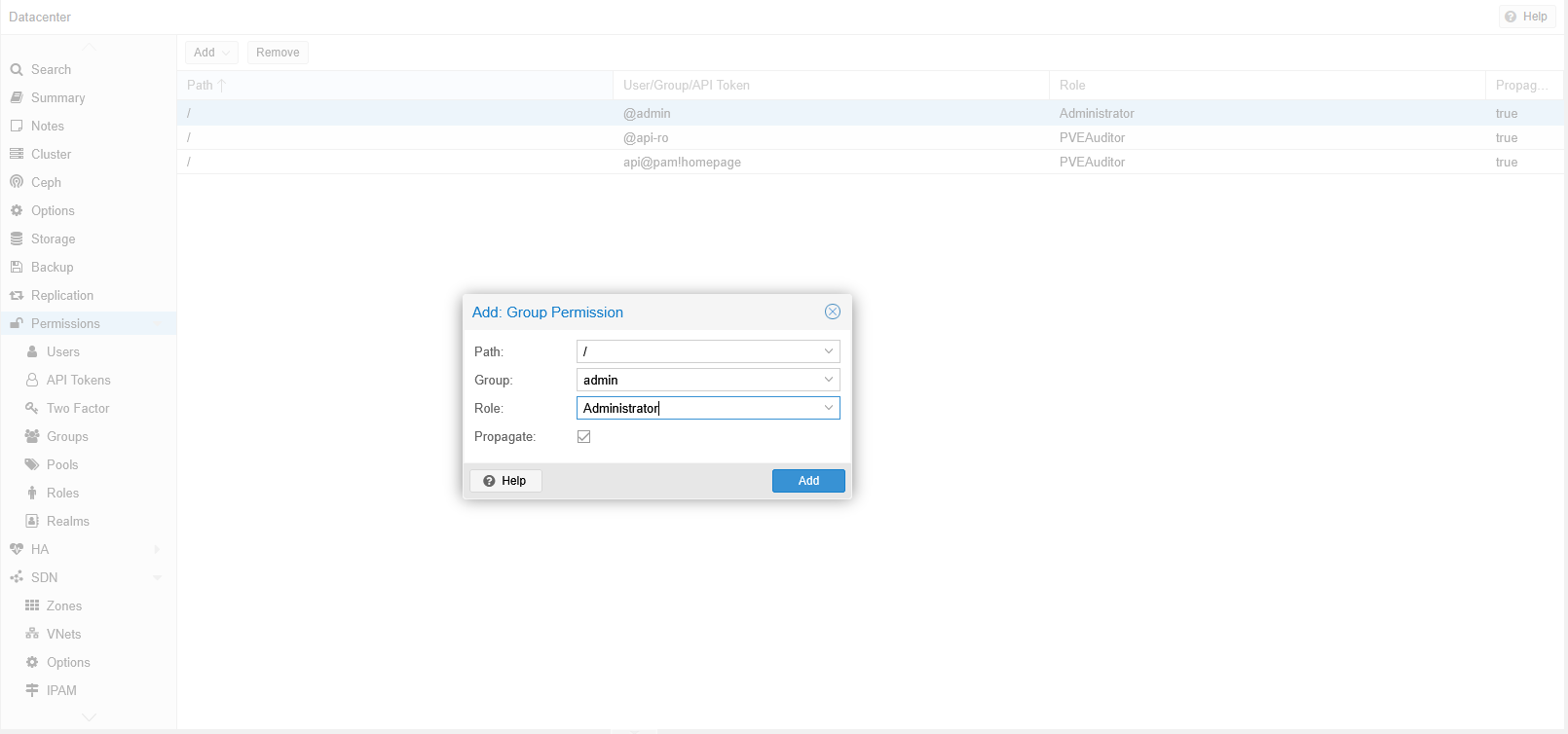
Then I went up to the Permissions tab and added a new Group Permission for the “admin” group with “Administrator” role on “/”.
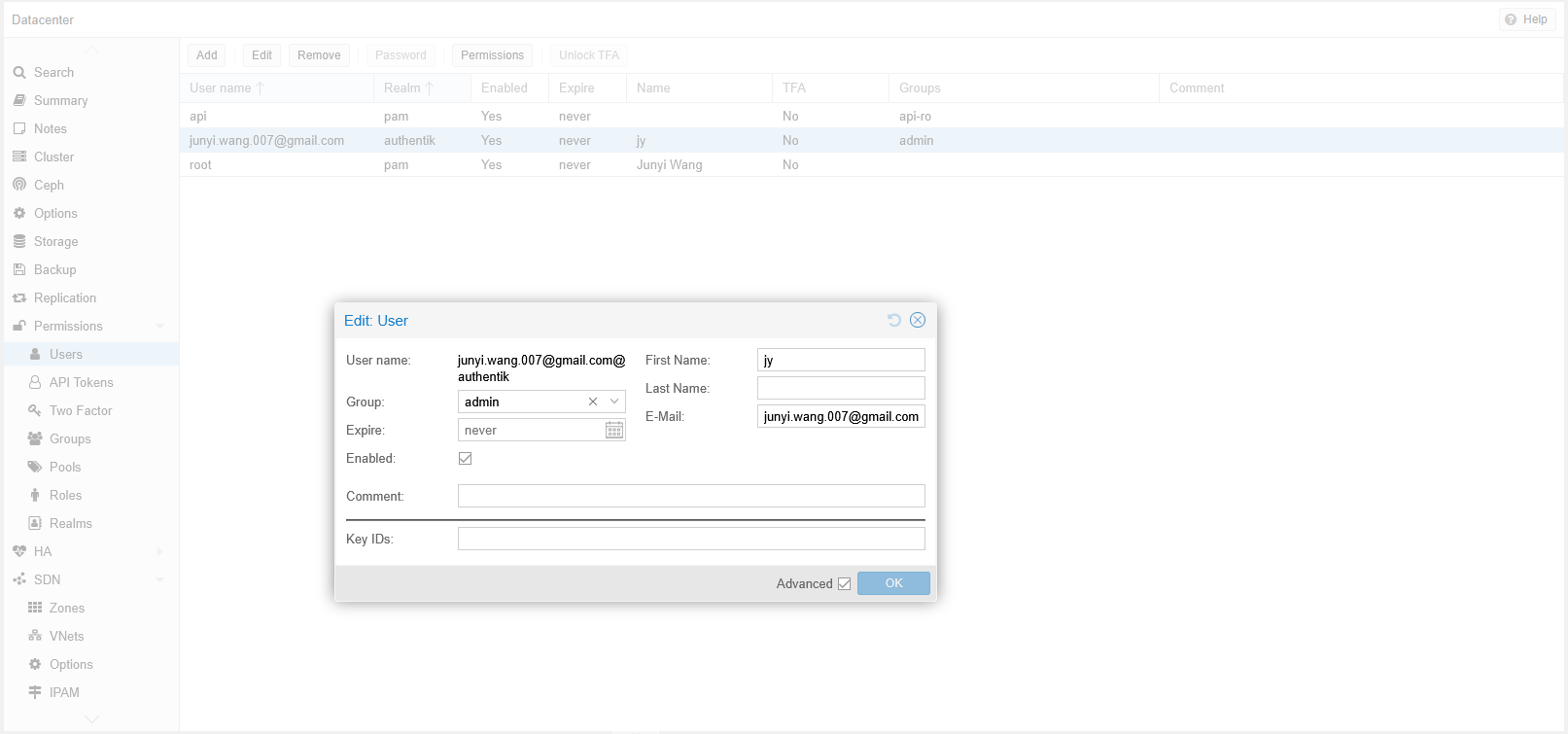
Now the last step is to add my user to the “admin” group. This was done in Users tab under Permissions. The username looks a bit funny but I just left it as is.
After logging out and logging back in, privileges kicked in.